

People often ask whether they can take their IPTV channels in the car. The honest answer is yes, with one condition that comes from CarPlay itself: you listen, you do not watch. OneTV Connect works in CarPlay on compatible vehicles, from your iPhone, and this guide explains what you can do there, how to start, and why the car experience is audio only.
What you get in the car
CarPlay is a feature of the iPhone, so there is no separate app to install: it is the OneTV Connect you already have on the phone, shown on the car’s display. In it you get three things: your live channels, your favorites, and — with OneTV Pro — the Radio. It is built for listening to a news channel, a sports commentary or a radio station on the road, using the same lists you set up at home.
Start listening in CarPlay
- Connect your iPhone to the vehicle’s CarPlay, wired or wireless depending on the car.
- Open OneTV from the CarPlay home screen.
- Pick a tab: Channels, Favorites or Radio.
- Choose a channel or a station and listen.
The channels come from the playlists you already added in the app on the iPhone; there is nothing to configure in the car itself.
Channels: order, favorites, folders, sorting
The point of the design is that the car looks like your app, not like a second, different list:
- Same order as in the app. Your channels appear in the order you arranged them, so the one you press most often is where you expect it.
- Favorites and their folders. If you organise your favorites in folders at home, the folders are there in the car.
- A sort of your choice: Default, number, A–Z, Z–A, or favorites first. Default keeps the order of your lists; the others help when you know a channel by its number or its name.
A real pause
CarPlay has a pause button, and in OneTV it does what it says: it is a real pause, not a stop button wearing a pause icon. It is a small detail, but a control that behaves the way its icon says is exactly what you want when your attention has to be on the road.
The Radio tab
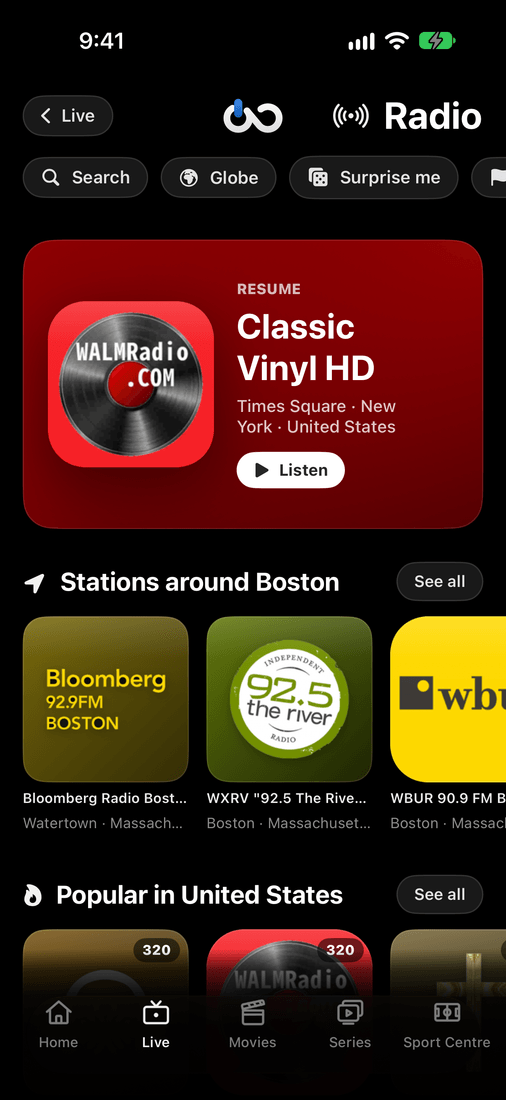
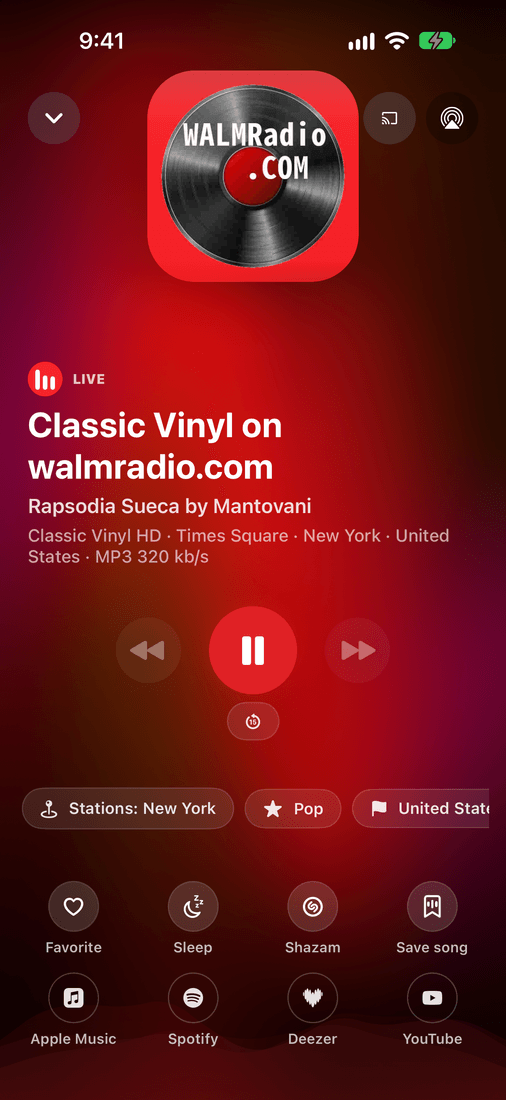
The Radio tab is a OneTV Pro feature, and it is the same Radio as on the Apple TV, the iPhone and the Mac, once you have added World Radios in Settings › Sources. In the car it offers Near me, Favorites, Popular, Countries and Genres. Near me is the one most people use on a trip: it shows the stations of the place you are in.
Why it is audio only
You will notice there is no video in OneTV in the car. That is the framework CarPlay sets, not a missing feature on our side: Apple does not allow video to be played on the car’s display. So OneTV treats CarPlay as a place for sound — channels you can follow by ear, and radio — and keeps the picture for the Apple TV, the iPhone, the iPad, the Mac and the Vision Pro, where it belongs.
That is also why a channel is a good fit when the sound carries it: news, a talk programme, the commentary of a football match. A film or a series would only give you half of what it is made of.
In CarPlay, OneTV is three lists — Channels, Favorites and Radio — and the screens that depend on a picture, such as the movie and series pages or the multi-screen mosaic, stay in the app. If you like following several channels at once, that is a job for the multi-screen mode at home.
Practical tips
Most of the work happens at home, before you leave. CarPlay reads what the app already holds, so the better your lists are organised on the iPhone, the better the car will feel.
- Put the channels you listen to in your favorites before you leave: the Favorites tab is the quickest way back to them.
- Choose “favorites first” in the sort if your lists are long.
- For sport on the way home, the live scores and second-screen guide shows how to follow the match on your phone once you have parked; the Sport Centre is free once a playlist is added.
- If a channel does not start, the buffering troubleshooting guide applies to the phone’s connection too.
Think of it as one setup shown in two places. The same favorites, the same folders and the same order serve you on the sofa, on the Apple TV, and in the car with CarPlay, so a change you make once is a change you get everywhere. More on the iPhone side of the app is on the iPhone page, and the Apple TV side is on the Apple TV page.
Frequently asked questions
Which cars work?
Compatible vehicles only: the ones that support CarPlay. OneTV appears in CarPlay on those cars when your iPhone is connected.
Can I watch my channels on the car screen?
No. Apple’s CarPlay does not allow video on the car display, so OneTV in CarPlay is for listening only.
Is CarPlay free?
Listening to your channels is not tied to a Pro subscription. The Radio tab in CarPlay is a OneTV Pro feature.
Does my favorites organisation carry over?
Yes. Favorites and their folders show in the same order as in the app, and you can sort by default order, number, A–Z, Z–A or favorites first.