

You are watching a music channel, a sports highlights reel or a film on live TV, and a song comes on that you want to know. The usual answer is to grab your phone and hold it up to the speaker. In OneTV Connect there is a shorter route: Shazam works on the sound of the channel itself, with no microphone. This guide shows how it works, where to tap, and what to expect on each device.
How it works without a microphone
When you ask Shazam to identify a song, the app does not listen to the room. It listens to the sound that the player is decoding at that very moment. That has three practical consequences. First, there is no microphone permission to grant for this feature. Second, the TV volume, the room, a conversation or a barking dog make no difference to the result. Third, it keeps working with headphones on, because the audio is read inside the app before it ever reaches your ears.
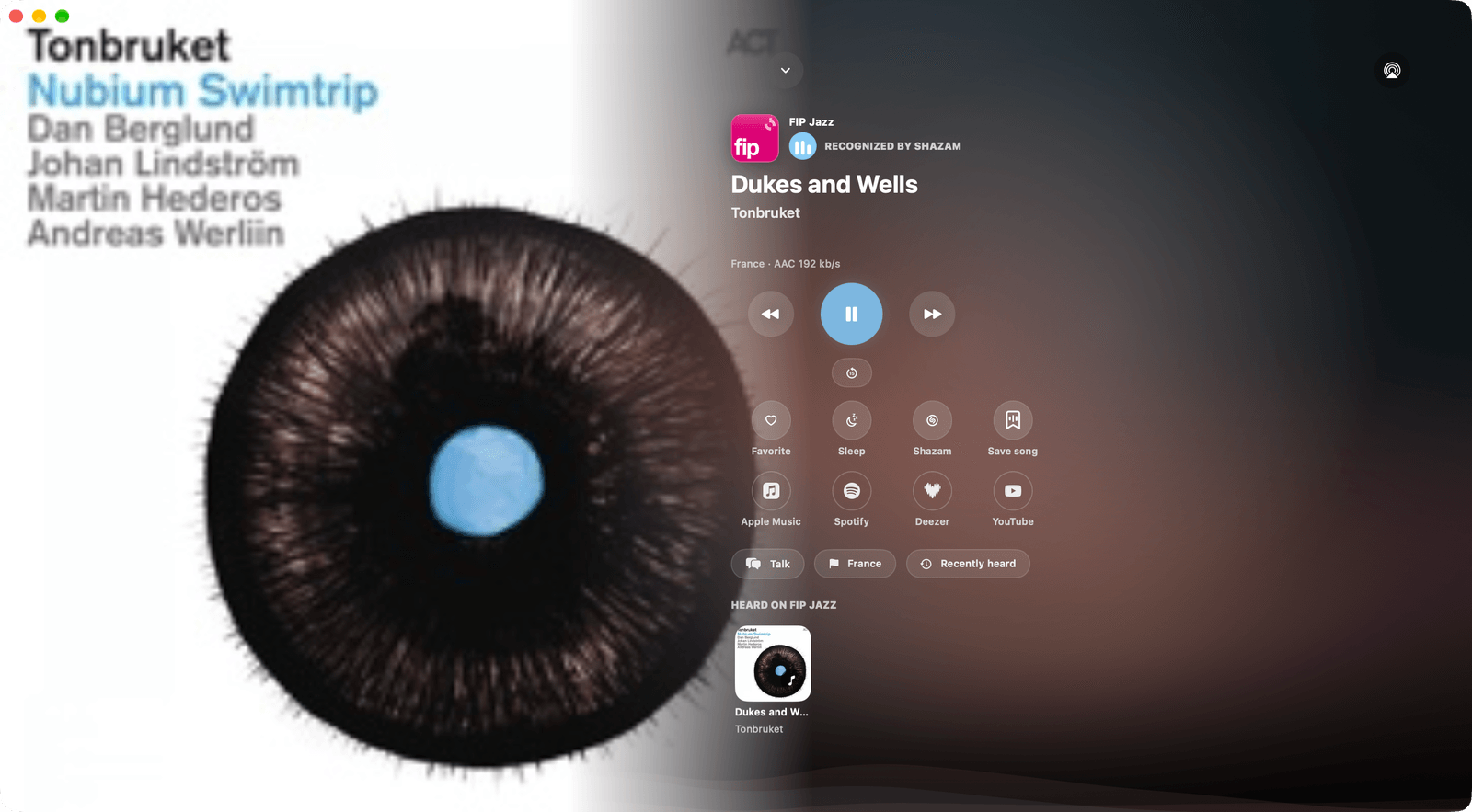
Identify a song in the live player
- Start any channel in the Live player.
- Tap the Shazam icon in the player to identify what is playing. On the Apple TV, press Up from the player to reach the Shazam button of the Live panel; its options appear just above it.
- Wait a moment: the title and artist appear. On iPhone they show in a small pill; on iPad, Apple TV, Mac and Vision Pro a card opens with more detail.
The live-TV version of Shazam is not locked behind a Pro subscription.
The Shazam menu
The icon opens a menu with four things:
- Identify the song, for a one-off lookup of what is playing now.
- Continuous listening, which keeps identifying songs as the channel plays, handy for a music channel you leave on in the evening.
- My Shazam, the list where recognised songs are added. It also happens automatically, so a song you recognised while you were busy is still there afterwards.
- Show the last song again, if you missed the title before it disappeared.
What you see on each device
iPhone: the title and the artist appear in a pill over the player. iPad, Apple TV, Mac and Vision Pro: a card shows the cover, the album, a link to Apple Music, the option to add the song to My Shazam, continuous listening, and the songs heard this evening on the channel — a quick way to see what the channel played since you sat down.
On the Apple TV there is no way to tap a link, so the card shows a QR code instead: scan it with your phone to open the song in Apple Music (“Scan to open in Apple Music”). It is the same destination, one gesture away from the sofa.
Which players support it
Shazam on live TV works with OneTVPlayer, the default player, and with KSPlayer. It is not available with VLC or MPV. If the Shazam icon does not appear, check which player is active in the player menu. To compare the engines, read MPV, VLC and KSPlayer compared, or the OneTVPlayer guide.
Shazam in the Radio
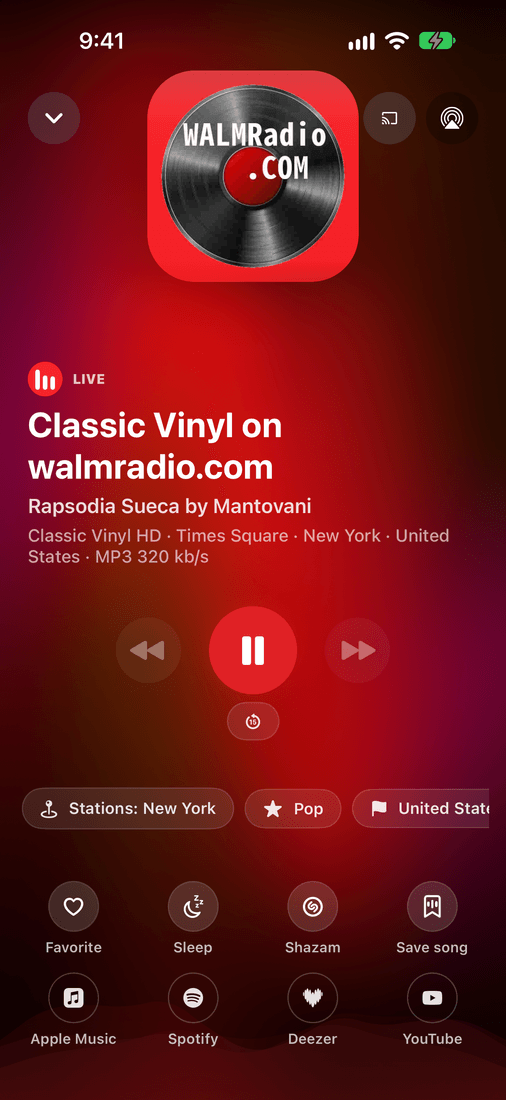
The same idea works in the Radio, which is a OneTV Pro feature. When a station does not announce its songs, Shazam recognises the track from the player’s sound, again without a microphone. Songs you heard are kept under “Heard on the radio” with a link to Apple Music, and you can save or find them in Apple Music, Spotify, Deezer or YouTube. The world radio guide covers the rest of the player.
Three ways to use it
The one-off lookup. A song starts during a film or a sports programme; you open the menu, choose Identify, and read the title. Nothing else changes: the channel keeps playing.
The evening on a music channel. Turn on continuous listening and let the channel run. Afterwards, My Shazam holds what played, and on the larger screens the card lists the songs heard this evening on the channel.
The song for later. You do not have to stop to write it down. Because songs are added to My Shazam automatically, you can look at the list at the end of the programme and open the ones you liked in Apple Music.
Limits to know
- It needs music. During a news bulletin or a match commentary there is nothing for Shazam to identify; wait for a song or a jingle.
- It needs a supported player. OneTVPlayer or KSPlayer for live TV, as above.
- The player must be running. If a channel is paused or buffering, there is no sound to read.
- The Radio side is Pro; the live-TV side is not.
If a channel stutters, the buffering guide is the place to start. For everything else that arrived in recent versions, see what is new in OneTV 3.x, or the Apple TV page.
Frequently asked questions
Does Shazam in OneTV use my microphone?
No. It reads the sound decoded by the player, so no microphone is used and it also works with headphones.
Which players can identify songs?
OneTVPlayer and KSPlayer. VLC and MPV do not support it.
Where do identified songs go?
Into My Shazam, automatically, and you can open them in Apple Music. On the Apple TV, scan the QR code with your phone.
Is it a Pro feature?
On live TV, no. In the Radio, which is itself a Pro feature, yes.