

If you already use OneTV Connect for live TV, the Radio is the part of the app that does not need a screen at all: nearly 50,000 stations from around the world, in the same app and on the same devices as your channels. This guide shows how to turn it on, how to find something worth listening to, and what each device adds — the Apple TV, the iPhone and iPad, the Mac and the Vision Pro.
Add World Radios in Settings
The Radio is a OneTV Pro feature, and it is added like any other source. Open Settings › Sources and add World Radios. There is nothing to type: no address, no username. Once it is added, it appears on all your devices through iCloud, so you do it once and the Apple TV, the iPhone, the iPad, the Mac and the Vision Pro all get it. Removing the source removes it everywhere.
Where you find it afterwards depends on the device:
- Apple TV, Mac and Vision Pro: a Radio entry in the sidebar.
- iPhone and iPad: a Radios space inside Live, with your favorite and recent stations. On iPhone you can also switch on a dedicated Radio tab in Settings › Appearance.
Find a station
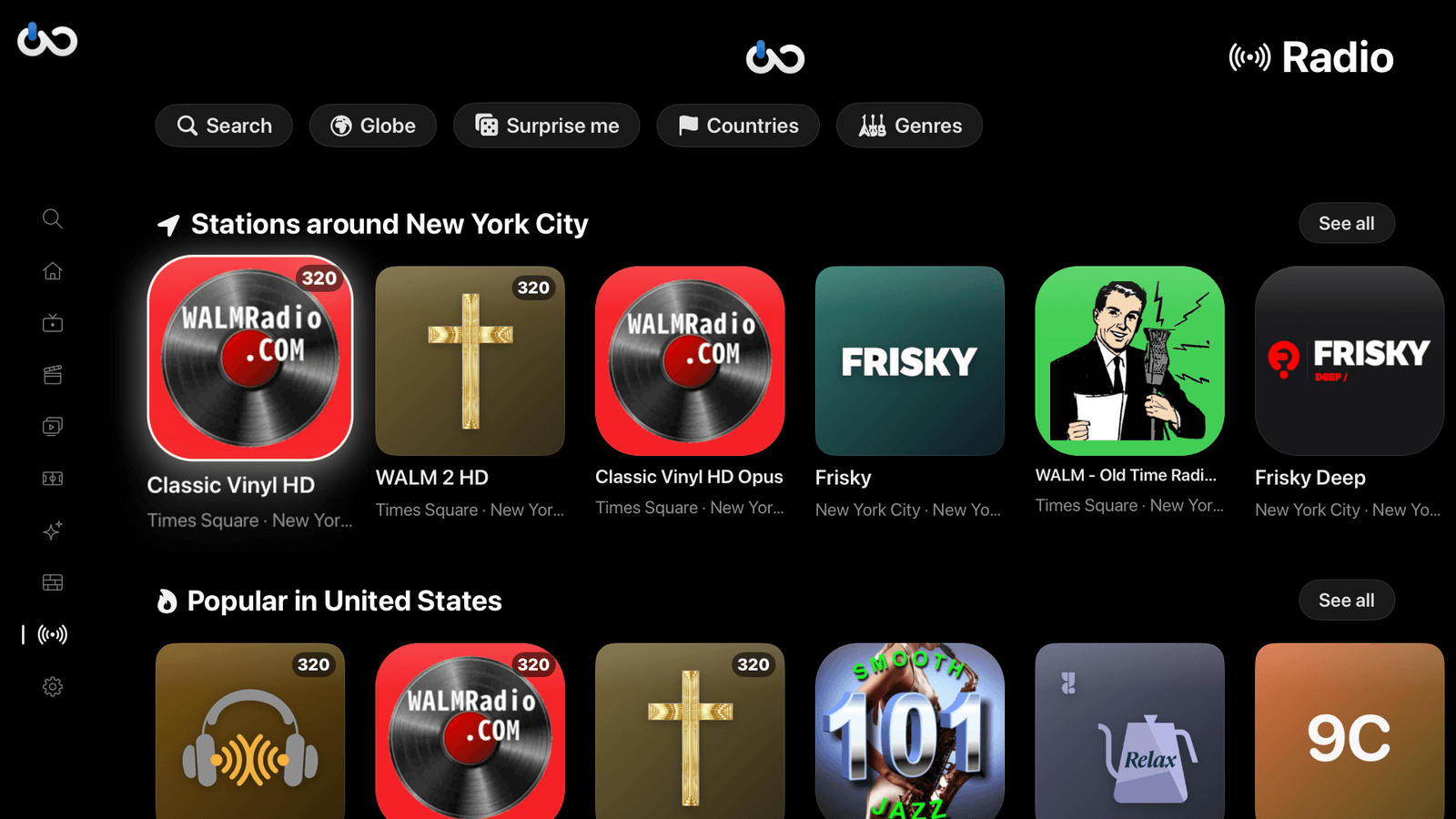
With this many stations, browsing matters more than searching. The Radio home is organised so that the first screen already has something to play:
- Near me shows the stations of your town first, then the large national stations, in a single tap.
- Most listened in your country, plus rows by genre — news, chill, jazz, the eighties, dance and so on.
- Countries and their regions, for when you want the radio of a place you used to live in, or one you plan to visit.
- Favorites and saved stations. You can sort your saved stations under your own dividers, and they sync through iCloud like the rest of your setup.
Each station shows its logo, which has been cleaned up so it sits in a rounded tile rather than on a stray white rectangle.
The 3D globe and Surprise me
The globe is the playful way in. Turn it, and every bright dot is a city with its stations; pick a dot and you get that city’s list. It is not the fastest way to find a known station, but it is a good way to hear what a place sounds like on an ordinary Tuesday. On the Apple TV the button is called Globe in English and Monde in French.
If you would rather not choose at all, Surprise me takes you to a random station. It is a handy answer to “I want background music but I do not know what”.

The full-screen player
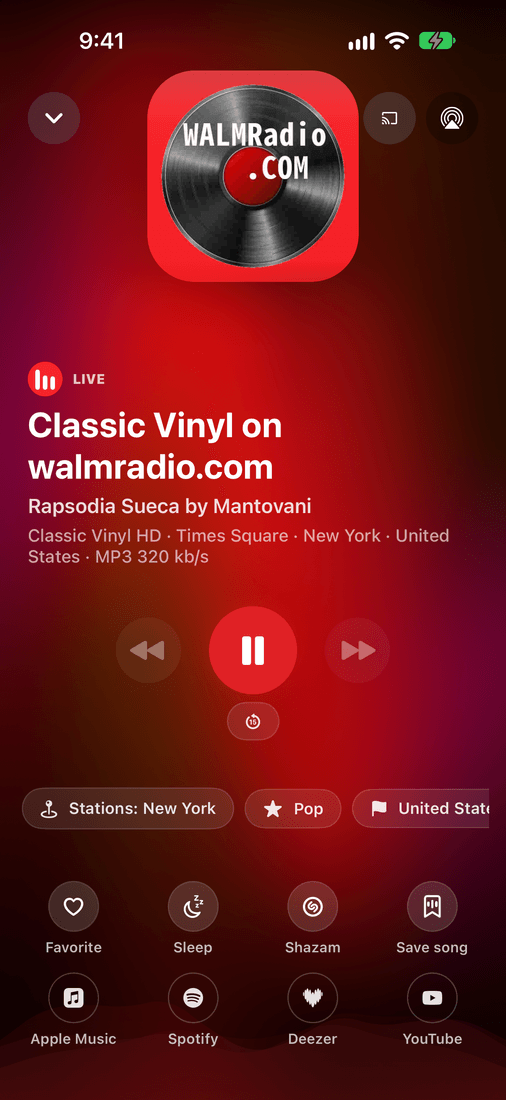
The player shows the cover of the current song large, with title and artist, and takes its colours from the artwork — or from the station’s logo when no cover is available — with a soft transition at every change. Behind it, a glow and a wave of light follow the music. When a station does not announce its songs, the app can still identify the track: it uses Shazam on the sound the player itself decodes, so no microphone is involved. Songs you heard are kept under “Heard on the radio” with a link to Apple Music, and you can save or find them in Apple Music, Spotify, Deezer or YouTube.
What changes on each device
Apple TV. The radio keeps playing when you go back to the menu. After 30 seconds without touching the remote, the player goes idle but keeps its controls on screen: previous station, play and pause, next station, “Open in Apple Music”, the stations of the current region and the latest songs heard. Your favorite stations also appear in the Top Shelf of the Apple TV home screen.
iPhone and iPad. A mini player stays at the bottom of the screen while you browse the rest of the app. The radio keeps going with the screen locked, with controls and cover on the Lock Screen and in Control Center, and it can be sent over AirPlay or Chromecast.
Mac. The same mini player and the Radio entry in the sidebar, in the Mac app. Vision Pro. The same Radio section and full-screen player in the Vision Pro app. If you also use the car, the Radio has its own tab in CarPlay — see IPTV and radio in CarPlay.
Sleep timer and radio alarm
Two actions sit in the player. The sleep timer stops the radio after 15 to 90 minutes or at the end of the current song, lowering the volume gradually instead of cutting off. The radio alarm wakes you to a station of your choice.
Streams that keep working
Internet radio streams break all the time, so the list is not left alone. Every night each stream is tested; a broken one is replaced by another working address of the same station, preferring one without an advert at start-up, and a station with no working address is removed from the lists. In short, the Radio is built to start without an advert at start-up and to stay playable without you maintaining anything.
The Radio sits next to your channels, so it also plays well with the rest of the app: you can read about the in-house player in OneTVPlayer or see how the Apple TV app and the iPhone app fit together. For everything added since 3.0, see what is new in OneTV 3.x.
Frequently asked questions
Is the Radio free?
No. World Radios is a OneTV Pro feature. Everything else in this guide — adding it, browsing, the player — is available once Pro is active.
Where do I find the Radio on my iPhone?
In Live, in the Radios space. You can also switch on a dedicated Radio tab in Settings › Appearance.
Will the radio keep playing when I leave the app?
On Apple TV it keeps playing when you go back to the menu. On iPhone and iPad it keeps playing with the screen locked, with controls on the Lock Screen and in Control Center.
Can I send the radio to another speaker?
On iPhone and iPad, yes: AirPlay and Chromecast are available from the player.